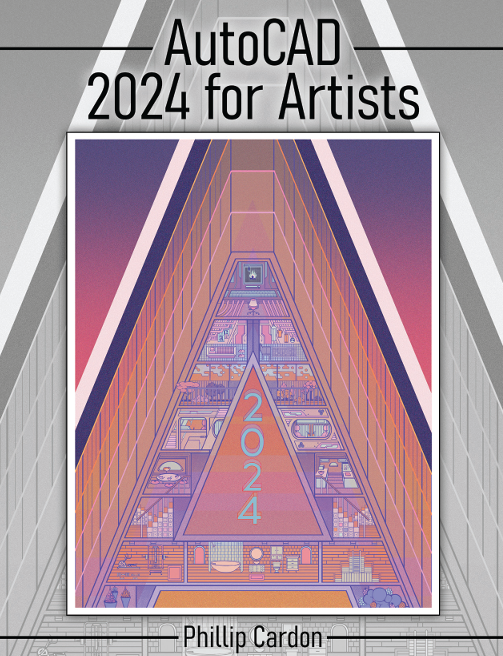
AutoCAD 2024 for Artists

Author(s): Phillip Cardon

Edition: 1

Copyright: 2025

Pages: 411

Choose Your Format

Choose Your Platform | Help Me Choose

Ebook

$85.00 USD

ISBN 9798385171125

Details Electronic Delivery EBOOK 180 days

In this textbook, you will be guided through the use of AutoCAD© on a Windows©-based computer to complete assignments and exercises that will help you better understand how to create drawings and images for both environment design and artistic instruction. Learning to be both detailed and creative will be emphasized. The use of AutoCAD or other software to draw or recreate/edit ideas and sketches is known extensively throughout the industries that utilize these software packages. The ability to create, edit, copy, paste, scale, etc., images and sketches greatly increases the speed of completing drawings and communicating ideas with accuracy! Although hand-drawn sketches and ideas have their place, the ability to make changes and duplicate these changes and ideas using computer software such as AutoCAD saves time and money.

Chapter 1 Introduction to the AutoCAD©  Interface Objectives  
Welcome to AutoCAD!  
Computer Use  
Opening AutoCAD  
AutoCAD Interface  
Application Menu  
Quick Access Toolbar  
Menu Bar  
Main Ribbon  
  Panels  
  Command Input Line  
  Dynamic Input  
  ViewCube  
  Status Bar  
Selecting Objects  
Saving Work  
Closing/Exiting AutoCAD  
Chapter Summary  
Questions

Chapter 2 Text and Tables in AutoCAD©  
Objectives  
Saving drawing files  
Setting Up AutoCAD Drawing  
  Units 
  Limits  
  Griddisplay  
  Grid 
  GridStyle  
  Snap  
  Scale  
Layers  
  Add new layer 
  Color  
  Linetype  
  Lineweight  
Activity 2.1 – Adding text to an AutoCAD Drawing  
  Text Style  
  Font  
  Entering text  
  Changing text properties  
Activity 2.2 – Adding Text to AutoCAD Table  
Text Style  
Table Setup  
Editing table  
Chapter Summary  
Questions  
Exercises 
Exercise 2.1 – Create a table for doors in a cabin 
Exercise 2.2 – Create a table for paint colors in rooms 

Chapter 3 AutoCAD© Settings and Commands  
Objectives  
Activity 3.1 – Creating an artistic drawing  
  Setup  
  Layers  
Grid Line or Distance Drawing  
Absolute Coordinate Drawing 
  Polyline 
Relative Coordinate Drawing 
Drawing Shapes  
  Square  
  Draw more shapes 
  Circles
  Ellipses  
  Osnap 
Modification Tools 
  Move  
  Copy  
  Scale  
  Grips  
  Rotate  
  Hatch and color  
  Island detection  
  Boundary  
  Hatch & gradient dialogue box  
Work Submission 
  DWG & PDF  
  PNG  
  Snipping tool  
  Printing/plotting Work  
Activity 3.2 – Drawing artistic objects  
Additional drawing tools 
  Arc 
  Region  
  Helix 
  Donut  
  Revision Cloud  
Chapter Summary  
Questions  
Exercises 
  Exercise 3.1 – Vocabulary assignment 
  Exercise 3.2 – Set up and save a template for a picture 8 ½” x 11”  
  Exercise 3.3 – Create a simple, yet colorful landscape using the tools you  have learned 

Chapter 4 Drawing Constructed Environments Using AutoCAD© 
Objectives  
Activity 4.1 – Creating an Artistic Computer Room/Environment and Furniture
  Outside walls 
  Doorway  
    Offset  
    Mirror  
    Trim
Doors  
  Join walls  
  Offset walls  
  Explode  
Furniture  
  Printer/Plotter 
Fillet 
Computer stations & chairs 
  Chairs  
  Computer stations 
Projector and screen  
Chamfer  
Wall hatch  
Activity 4.2 – Modifying an Artistic Room/Environment and Furniture 
  Midpoint  
  Stretching grips  
  Arrays 
  Polygon  
  Hatches/Colors/Gradients 
Chapter Summary  
Questions  
Exercises  
  Exercise 4.1 – Drawing Lines 
  Exercise 4.2 – Drawing Circles 

Chapter 5 Measurements and Dimensions 
Objectives  
Activity 5.1 – Adding dimensions to existing drawings 
  Dimension types  
  Dimension Style Manager 
    Scale 
  Furniture dimensions 
  Dimension break 
Activity 5.2 – Measuring drawing areas  
Chapter Summary  
Questions  
Exercises 
  Exercise 5.1 – Drawing Content and Form 
  Exercise 5.2 – Adding dimensions to an existing drawing 

Chapter 6 Creating/Inserting Artistic Blocks 
Objectives  
Activity 6.1 – Drawing an artistic bedroom/dorm room 
  Setup  
  Layers  
  MultiLine  
  Breakline  
  Draw room  
  Blocks  
Activity 6.2 – Obtaining Blocks from AutoCAD DesignCenter 
  Design Center  
  Insert blocks  
Activity 6.3 – Artistic Patio Furniture 
  Polar Array  
  Editing blocks  
Chapter Summary  
Questions  
Exercise
  Exercise 6.1 – Create an artistic classroom with student desks 
  Exercise 6.2 – Create an artistic drawing of a bathroom 
  Exercise 6.3 – Insert artistic blocks into an existing drawing

Chapter 7 Creating Artistic Environment Elevations 
Objectives  
Activity 7.1 – Creating artistic furniture elevations 
  Dresser elevation 
  Setup  
  Layers  
  Drawing frame 
  Drawers  
  Handles  
  Legs 
  Hatch, color and/or gradient 
Activity 7.2 – Drawing artistic environment elevations 
  Setup 
  Layers  
  Elevation view  
    Sink/vanity 
    Toilet 
    Tissue roll  
    Trash can 
  Elevation view 2 
    Walls 
    Door knob 
    Bathtub 
Chapter Summary 
Questions 
Exercises  
  Exercise 7.1 – Draw the 3 Great Pyramids 
  Exercise 7.2 – Artistic evaluation of animals, objects and environments 
  Exercise 7.3 – Draw artistic elevation of an environment 

Chapter 8 Creating Artistic Orthographic Furniture and Vegetation 
Objectives 
Activity 8.1 – Drawing artistic furniture 
  Setup 
  Layers  
  Walls 
  Chairs  
  Tables  
Activity 8.2 – Drawing artistic vegetation 
  Plants  
  Flowers
Chapter Summary 
Questions  
Exercises  
  Exercise 8.1 – Draw artistic furniture for a bedroom  
  Exercise 8.2 – Create artistic vegetation in a drawing
  Exercise 8.3 – Draw an artistic elevation of plants in pots 
  Exercise 8.4 – Create an artistic elevation of flowers in vases 

Chapter 9 Isometric Artistic Drawings in AutoCAD 
Objectives  
Activity 9.1 – Creating traditional Isometric objects in AutoCAD 
  Setup 
  Layers  
  Cube 
  Rectangular Cube 
  Traditional L-block 
Activity 9.2 – Creating artistic isometric objects in AutoCAD 
  Setup 
  Layers 
  Stool 
Chapter Summary 
Questions  
Exercises 
  Exercise 9.1 – Isometric artistic drawing of furniture 
  Exercise 9.2 – Create isometric artistic drawing of a chair 

Chapter 10 Basic Artistic Three-dimensional Modeling in AutoCAD 
Objectives  
Activity 10.1 – Three-dimensional artistic solid primitives 
  Three-dimension views options overview 
  Setup 
  Layers  
  View Cube 
  Navigation Wheel 
  Primitives 
  Cube 
  Cylinder  
  Cone 
  Sphere  
  Pyramid 
  Wedge  
  Torus 
  Edit a three-dimensional object 
Activity 10.2 – Creating artistic objects  
  Setup 
  Layers  
  Three-dimensional cup 
  Revolution 
  Three-dimensional handle 
  Sweep 
  Three-dimensional candlestick holder 
  Loft
Chapter Summary  
Questions  
Exercises 
  Exercise 10.1 – Create an artistic paperclip 
  Exercise 10.2 – Three-dimensional primitive artistic creations

Chapter 11 Advanced 3D Artistic Modeling in AutoCAD 
Objectives  
Activity 11.1 – Modeling a three-dimensional artistic coffee table
Setup 
Layers  
Table top  
Legs 
Activity 11.2 – Modeling a three-dimensional artistic room 
  Setup 
  Layers  
  Walls 
  Three-dimensional walls 
  Three-dimensional doorway 
  Windows 
  Doors  
Chapter Summary 
Questions  
Exercises  
  Exercise 11.1 – Create a three-dimensional modeled artistic bench 
  Exercise 11.2 – Create a three-dimensional modeled artistic sofa 

Chapter 12 Artistic 3D Texturing, Lighting, and Animating of AutoCAD Work
Objectives  
Activity 12.1 – Texturing artistic three-dimensional models 
  Texturing 
Activity 12.2 – Lighting and shading three-dimensional model views 
  Point light 
  Spot light 
  Distant light 
  Weblight 
  Shading 
Activity 12.3 – Rendering three-dimensional model views 
  Render setup 
  Create a render 
Activity 12.4 – Animating an artistic three-dimensional view 
  Creating the scene 
Animation of a walk-around view  
Chapter Summary 
Questions  
Exercises 
  Exercise 12.1 – Texture and render an existing three-dimensional model 
  Exercise 12.2 – Add lighting to a three-dimensional model 
  Exercise 12.3 – Animate a walk-around of a three-dimensional model 

Phillip Cardon

Phillip L. Cardon holds a BS in Automotive Technology from Weber State University (1992), an MS in Technology Education (formerly Industrial Arts) with an emphasis in Instructional Technology from Brigham Young University (1996), and a PhD in Education (formerly Industrial Arts) from The Ohio State University (1999). He has been teaching courses in technology education, industrial arts, and simulation, animation, and gaming at Eastern Michigan University (EMU) since 1999. Dr. Cardon has served as the director of the EMU Project Lead the Way (PLTW) STEM initiative, has taught Principles of Engineering (POE) in the EMU PLTW Summer Training Institutes, and has obtained over $800,000 in grants for EMU. He was also instrumental in helping to establish the EMU–Tokyo Gakugei University student exchange program. Dr. Cardon has completed research in the areas of curriculum and development and special needs populations in technology education. He has been an active participant since 2003 in international research with the Tokyo Gakugei University with an international technological literacy assessment project and a technology curriculum in elementary education project. He completed a sabbatical in Fall 2008 working with Tokyo Gakugei University and the Japanese Education Consulate to establish a national accreditation program for technology education in Japan. His teaching interests include content areas related to technology education, secondary education teaching methods, curriculum development, technological literacy, instructional technology, AutoCAD, Autodesk Inventor, Autodesk 3ds Max, Autodesk Maya, Adobe Photoshop, and Pro-Engineering. Dr. Cardon is currently a professor in the Animation and Game Design program at EMU. Dr. Cardon lives in York Township, Michigan, with his wife, Lulie, and their cat. He enjoys playing golf, traveling, and tackling home improvement activities.

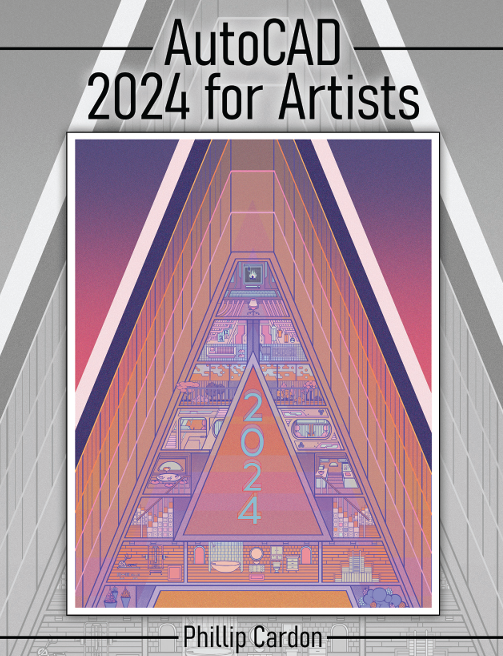
In this textbook, you will be guided through the use of AutoCAD© on a Windows©-based computer to complete assignments and exercises that will help you better understand how to create drawings and images for both environment design and artistic instruction. Learning to be both detailed and creative will be emphasized. The use of AutoCAD or other software to draw or recreate/edit ideas and sketches is known extensively throughout the industries that utilize these software packages. The ability to create, edit, copy, paste, scale, etc., images and sketches greatly increases the speed of completing drawings and communicating ideas with accuracy! Although hand-drawn sketches and ideas have their place, the ability to make changes and duplicate these changes and ideas using computer software such as AutoCAD saves time and money.

Chapter 1 Introduction to the AutoCAD©  Interface Objectives  
Welcome to AutoCAD!  
Computer Use  
Opening AutoCAD  
AutoCAD Interface  
Application Menu  
Quick Access Toolbar  
Menu Bar  
Main Ribbon  
  Panels  
  Command Input Line  
  Dynamic Input  
  ViewCube  
  Status Bar  
Selecting Objects  
Saving Work  
Closing/Exiting AutoCAD  
Chapter Summary  
Questions

Chapter 2 Text and Tables in AutoCAD©  
Objectives  
Saving drawing files  
Setting Up AutoCAD Drawing  
  Units 
  Limits  
  Griddisplay  
  Grid 
  GridStyle  
  Snap  
  Scale  
Layers  
  Add new layer 
  Color  
  Linetype  
  Lineweight  
Activity 2.1 – Adding text to an AutoCAD Drawing  
  Text Style  
  Font  
  Entering text  
  Changing text properties  
Activity 2.2 – Adding Text to AutoCAD Table  
Text Style  
Table Setup  
Editing table  
Chapter Summary  
Questions  
Exercises 
Exercise 2.1 – Create a table for doors in a cabin 
Exercise 2.2 – Create a table for paint colors in rooms 

Chapter 3 AutoCAD© Settings and Commands  
Objectives  
Activity 3.1 – Creating an artistic drawing  
  Setup  
  Layers  
Grid Line or Distance Drawing  
Absolute Coordinate Drawing 
  Polyline 
Relative Coordinate Drawing 
Drawing Shapes  
  Square  
  Draw more shapes 
  Circles
  Ellipses  
  Osnap 
Modification Tools 
  Move  
  Copy  
  Scale  
  Grips  
  Rotate  
  Hatch and color  
  Island detection  
  Boundary  
  Hatch & gradient dialogue box  
Work Submission 
  DWG & PDF  
  PNG  
  Snipping tool  
  Printing/plotting Work  
Activity 3.2 – Drawing artistic objects  
Additional drawing tools 
  Arc 
  Region  
  Helix 
  Donut  
  Revision Cloud  
Chapter Summary  
Questions  
Exercises 
  Exercise 3.1 – Vocabulary assignment 
  Exercise 3.2 – Set up and save a template for a picture 8 ½” x 11”  
  Exercise 3.3 – Create a simple, yet colorful landscape using the tools you  have learned 

Chapter 4 Drawing Constructed Environments Using AutoCAD© 
Objectives  
Activity 4.1 – Creating an Artistic Computer Room/Environment and Furniture
  Outside walls 
  Doorway  
    Offset  
    Mirror  
    Trim
Doors  
  Join walls  
  Offset walls  
  Explode  
Furniture  
  Printer/Plotter 
Fillet 
Computer stations & chairs 
  Chairs  
  Computer stations 
Projector and screen  
Chamfer  
Wall hatch  
Activity 4.2 – Modifying an Artistic Room/Environment and Furniture 
  Midpoint  
  Stretching grips  
  Arrays 
  Polygon  
  Hatches/Colors/Gradients 
Chapter Summary  
Questions  
Exercises  
  Exercise 4.1 – Drawing Lines 
  Exercise 4.2 – Drawing Circles 

Chapter 5 Measurements and Dimensions 
Objectives  
Activity 5.1 – Adding dimensions to existing drawings 
  Dimension types  
  Dimension Style Manager 
    Scale 
  Furniture dimensions 
  Dimension break 
Activity 5.2 – Measuring drawing areas  
Chapter Summary  
Questions  
Exercises 
  Exercise 5.1 – Drawing Content and Form 
  Exercise 5.2 – Adding dimensions to an existing drawing 

Chapter 6 Creating/Inserting Artistic Blocks 
Objectives  
Activity 6.1 – Drawing an artistic bedroom/dorm room 
  Setup  
  Layers  
  MultiLine  
  Breakline  
  Draw room  
  Blocks  
Activity 6.2 – Obtaining Blocks from AutoCAD DesignCenter 
  Design Center  
  Insert blocks  
Activity 6.3 – Artistic Patio Furniture 
  Polar Array  
  Editing blocks  
Chapter Summary  
Questions  
Exercise
  Exercise 6.1 – Create an artistic classroom with student desks 
  Exercise 6.2 – Create an artistic drawing of a bathroom 
  Exercise 6.3 – Insert artistic blocks into an existing drawing

Chapter 7 Creating Artistic Environment Elevations 
Objectives  
Activity 7.1 – Creating artistic furniture elevations 
  Dresser elevation 
  Setup  
  Layers  
  Drawing frame 
  Drawers  
  Handles  
  Legs 
  Hatch, color and/or gradient 
Activity 7.2 – Drawing artistic environment elevations 
  Setup 
  Layers  
  Elevation view  
    Sink/vanity 
    Toilet 
    Tissue roll  
    Trash can 
  Elevation view 2 
    Walls 
    Door knob 
    Bathtub 
Chapter Summary 
Questions 
Exercises  
  Exercise 7.1 – Draw the 3 Great Pyramids 
  Exercise 7.2 – Artistic evaluation of animals, objects and environments 
  Exercise 7.3 – Draw artistic elevation of an environment 

Chapter 8 Creating Artistic Orthographic Furniture and Vegetation 
Objectives 
Activity 8.1 – Drawing artistic furniture 
  Setup 
  Layers  
  Walls 
  Chairs  
  Tables  
Activity 8.2 – Drawing artistic vegetation 
  Plants  
  Flowers
Chapter Summary 
Questions  
Exercises  
  Exercise 8.1 – Draw artistic furniture for a bedroom  
  Exercise 8.2 – Create artistic vegetation in a drawing
  Exercise 8.3 – Draw an artistic elevation of plants in pots 
  Exercise 8.4 – Create an artistic elevation of flowers in vases 

Chapter 9 Isometric Artistic Drawings in AutoCAD 
Objectives  
Activity 9.1 – Creating traditional Isometric objects in AutoCAD 
  Setup 
  Layers  
  Cube 
  Rectangular Cube 
  Traditional L-block 
Activity 9.2 – Creating artistic isometric objects in AutoCAD 
  Setup 
  Layers 
  Stool 
Chapter Summary 
Questions  
Exercises 
  Exercise 9.1 – Isometric artistic drawing of furniture 
  Exercise 9.2 – Create isometric artistic drawing of a chair 

Chapter 10 Basic Artistic Three-dimensional Modeling in AutoCAD 
Objectives  
Activity 10.1 – Three-dimensional artistic solid primitives 
  Three-dimension views options overview 
  Setup 
  Layers  
  View Cube 
  Navigation Wheel 
  Primitives 
  Cube 
  Cylinder  
  Cone 
  Sphere  
  Pyramid 
  Wedge  
  Torus 
  Edit a three-dimensional object 
Activity 10.2 – Creating artistic objects  
  Setup 
  Layers  
  Three-dimensional cup 
  Revolution 
  Three-dimensional handle 
  Sweep 
  Three-dimensional candlestick holder 
  Loft
Chapter Summary  
Questions  
Exercises 
  Exercise 10.1 – Create an artistic paperclip 
  Exercise 10.2 – Three-dimensional primitive artistic creations

Chapter 11 Advanced 3D Artistic Modeling in AutoCAD 
Objectives  
Activity 11.1 – Modeling a three-dimensional artistic coffee table
Setup 
Layers  
Table top  
Legs 
Activity 11.2 – Modeling a three-dimensional artistic room 
  Setup 
  Layers  
  Walls 
  Three-dimensional walls 
  Three-dimensional doorway 
  Windows 
  Doors  
Chapter Summary 
Questions  
Exercises  
  Exercise 11.1 – Create a three-dimensional modeled artistic bench 
  Exercise 11.2 – Create a three-dimensional modeled artistic sofa 

Chapter 12 Artistic 3D Texturing, Lighting, and Animating of AutoCAD Work
Objectives  
Activity 12.1 – Texturing artistic three-dimensional models 
  Texturing 
Activity 12.2 – Lighting and shading three-dimensional model views 
  Point light 
  Spot light 
  Distant light 
  Weblight 
  Shading 
Activity 12.3 – Rendering three-dimensional model views 
  Render setup 
  Create a render 
Activity 12.4 – Animating an artistic three-dimensional view 
  Creating the scene 
Animation of a walk-around view  
Chapter Summary 
Questions  
Exercises 
  Exercise 12.1 – Texture and render an existing three-dimensional model 
  Exercise 12.2 – Add lighting to a three-dimensional model 
  Exercise 12.3 – Animate a walk-around of a three-dimensional model 

Phillip Cardon

Phillip L. Cardon holds a BS in Automotive Technology from Weber State University (1992), an MS in Technology Education (formerly Industrial Arts) with an emphasis in Instructional Technology from Brigham Young University (1996), and a PhD in Education (formerly Industrial Arts) from The Ohio State University (1999). He has been teaching courses in technology education, industrial arts, and simulation, animation, and gaming at Eastern Michigan University (EMU) since 1999. Dr. Cardon has served as the director of the EMU Project Lead the Way (PLTW) STEM initiative, has taught Principles of Engineering (POE) in the EMU PLTW Summer Training Institutes, and has obtained over $800,000 in grants for EMU. He was also instrumental in helping to establish the EMU–Tokyo Gakugei University student exchange program. Dr. Cardon has completed research in the areas of curriculum and development and special needs populations in technology education. He has been an active participant since 2003 in international research with the Tokyo Gakugei University with an international technological literacy assessment project and a technology curriculum in elementary education project. He completed a sabbatical in Fall 2008 working with Tokyo Gakugei University and the Japanese Education Consulate to establish a national accreditation program for technology education in Japan. His teaching interests include content areas related to technology education, secondary education teaching methods, curriculum development, technological literacy, instructional technology, AutoCAD, Autodesk Inventor, Autodesk 3ds Max, Autodesk Maya, Adobe Photoshop, and Pro-Engineering. Dr. Cardon is currently a professor in the Animation and Game Design program at EMU. Dr. Cardon lives in York Township, Michigan, with his wife, Lulie, and their cat. He enjoys playing golf, traveling, and tackling home improvement activities.
